Midwifery Documentation for Learning Tools and Records of Practice
Quick Links
- New placement (you must have at least one Midwifery placement)
- Completing Learning Tools
- Completing Records of Practice
- Reports page: Adding new reports
- Tracking records of practice for pseudonyms
- Tracking Learning Tool completions
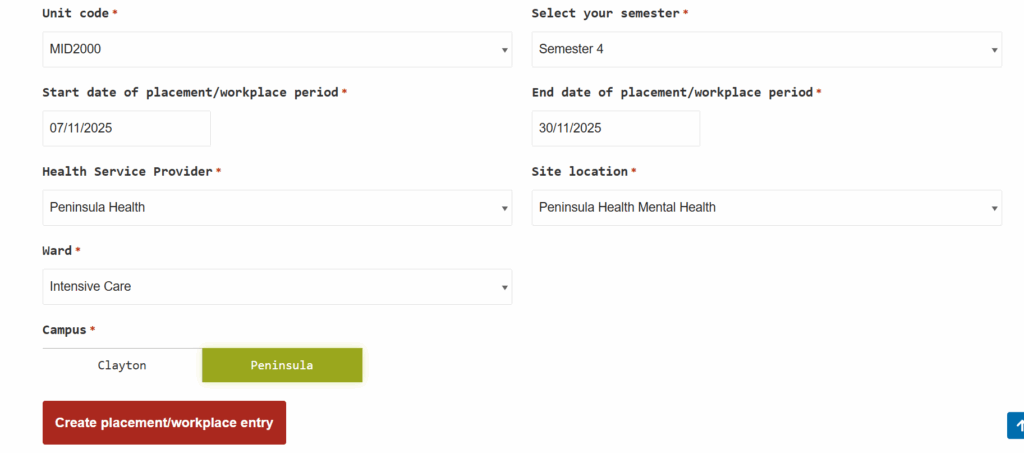
New Placement: Midwifery Placement
Create placement for a Midwifery unit if required via New placement or workplace page.
After the midwifery placement has been created, you can see the placement on the Reports page.
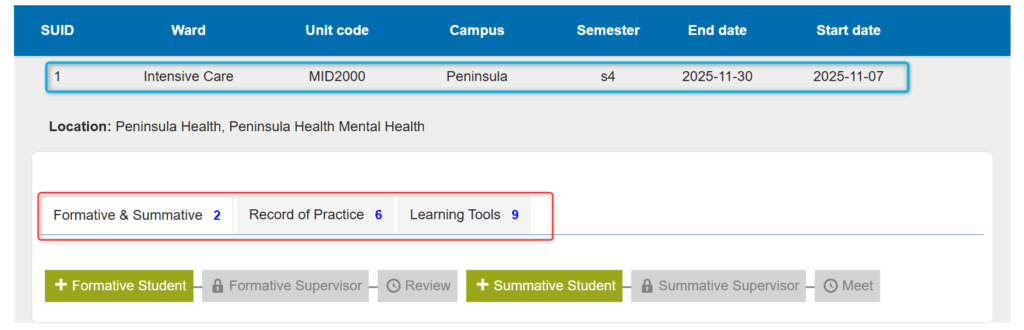
Under this placement, you will see tabs for the kind of forms which are applicable for the unit selected in the placement.
The above screenshot shows tabs for “Formative & Summative“, “Record of Practice” and “Learning Tools” because these form categories are applicable for the unit MID2000. The number in blue on each tab indicates the number of reports left to be completed in that category.
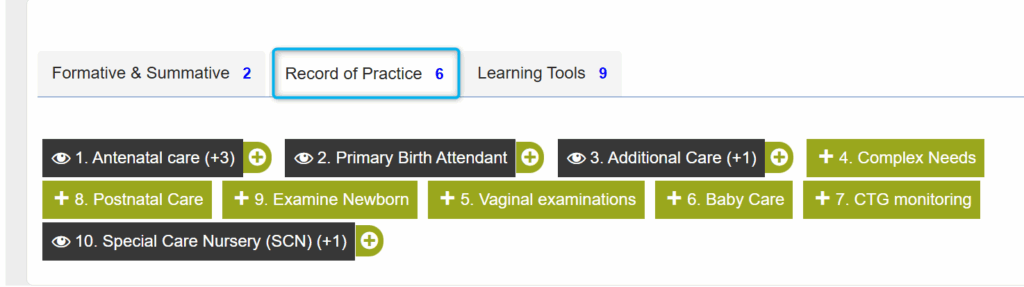
If you click on the tab “Record of Practice” will see 10 forms for Record of Practice. If you click on the tab “Learning Tools”, you will see 26 forms for Learning Tools.
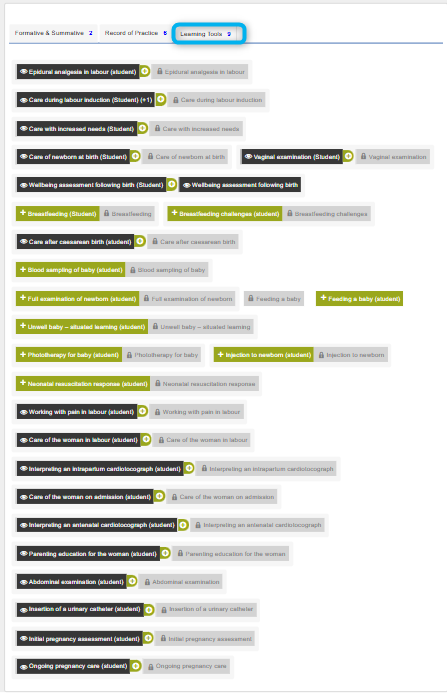
For Learning Tool forms, there are two versions for each form. One is to be filled by the student, following which the supervisor can fill the supervisor version for the same form.

Student versions of the Learning Tools form have “(student)” mentioned after the form name.
Completing the Learning Tool forms
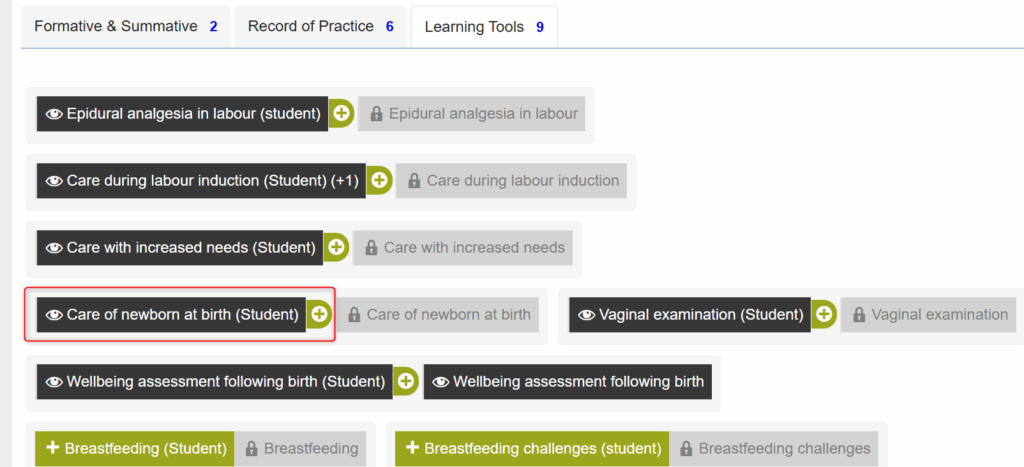
Click on the green student button of the Learning Tool form that you want to fill.
Fill all the mandatory fields in the form.
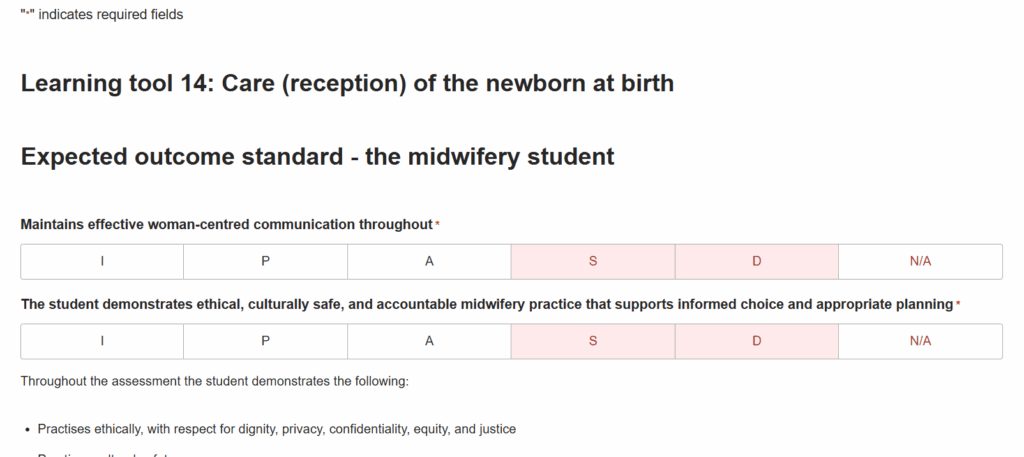
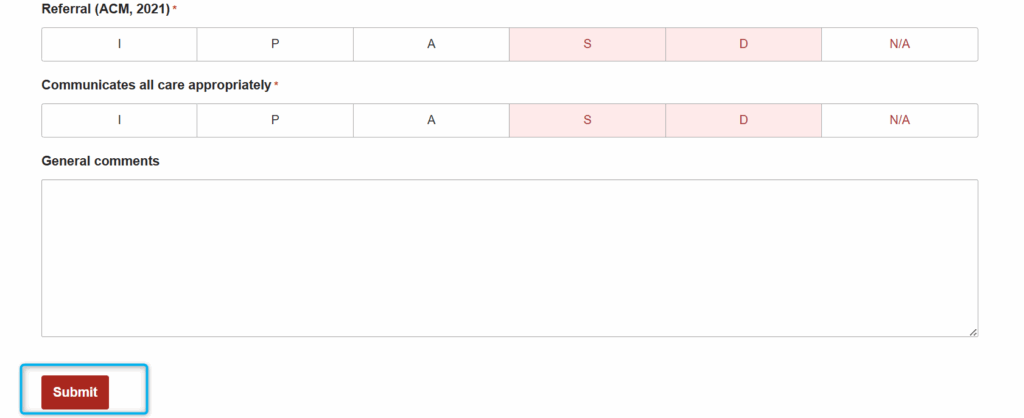
Submit the form.
Once the form has been submitted, you can see that the form status has changed on the Reports page.
Completing the Record of Practice forms
1. Filling as part of a placement
If you want to start the Record of Practice form as part of a placement, then click on the Record of Practice form that is shown under the “Record of Practice” tab in the placement.
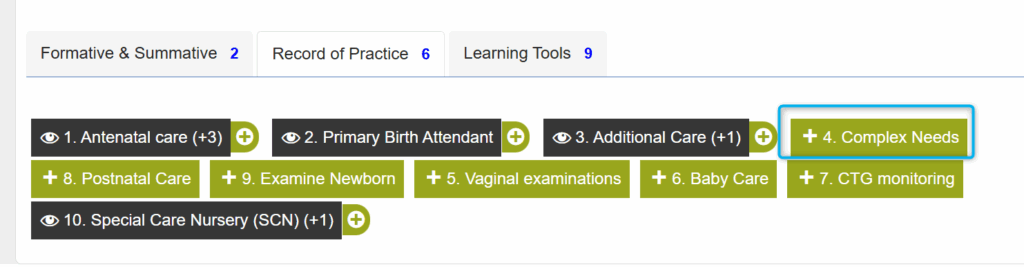
The corresponding form will open as shown in the below image.
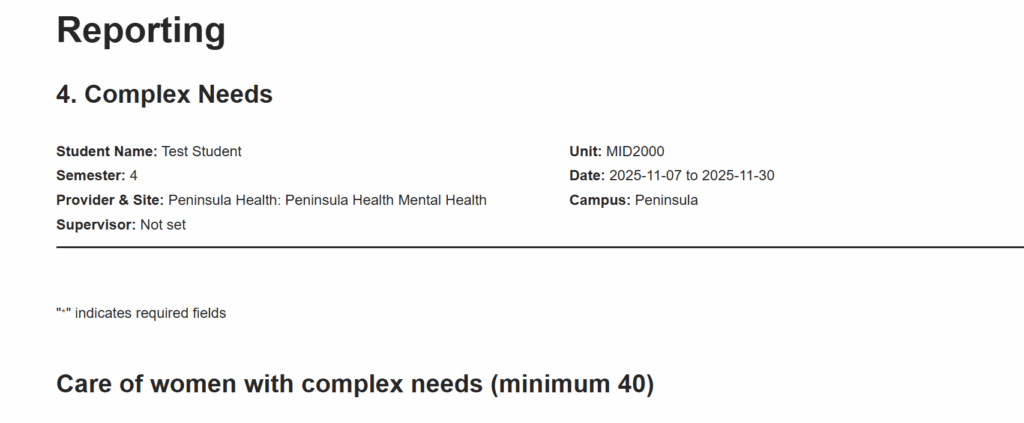
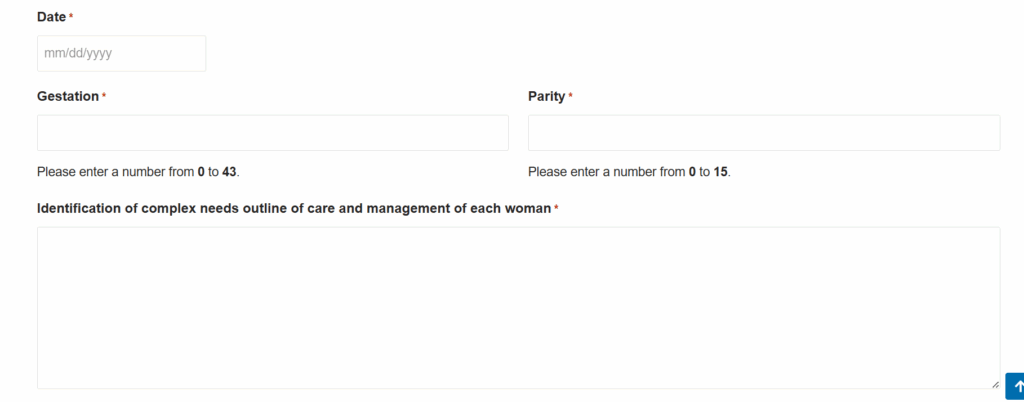
Fill all the mandatory fields in the form.
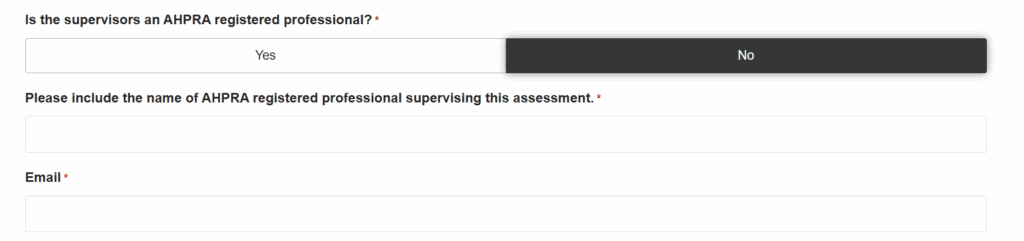
Adding AHPRA registered professional details
If you fill “YES” for “Is the supervisors an AHPRA registered professional?” field:
Enter the name, designation and email ID of the AHPRA registered professional. The email needs to be an institutional email only.
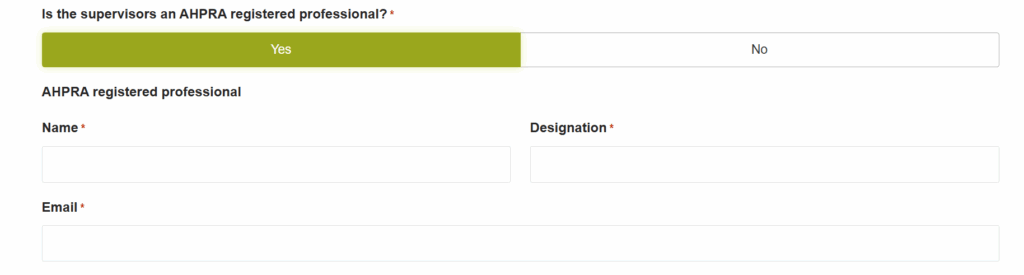
If you select “NO”, enter the name of RN and the email of the AHPRA registered professional supervising the assessment. The email needs to be an institutional email only.
Adding a CoCE Pseudonym Woman
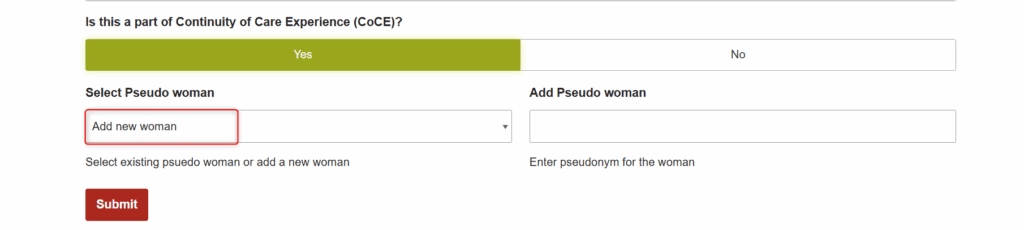
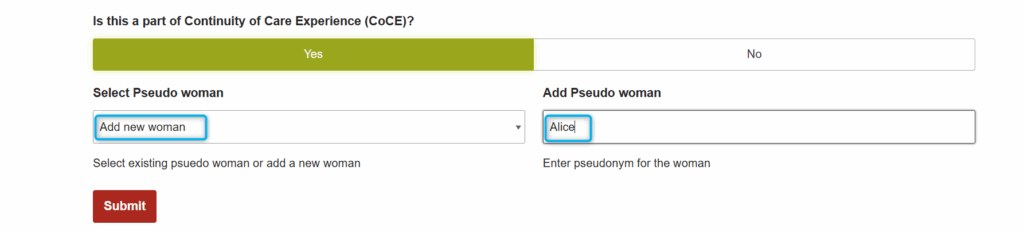
If the form submission is part of Continuity of Care Experience (CoCE) assessment, select “YES“. If there is no existing pseudo woman under your name, the form will give the option to “Add new woman”.
Enter the name of the pseudo woman on the right under the field “Add Pseudo woman“. Click on submit.
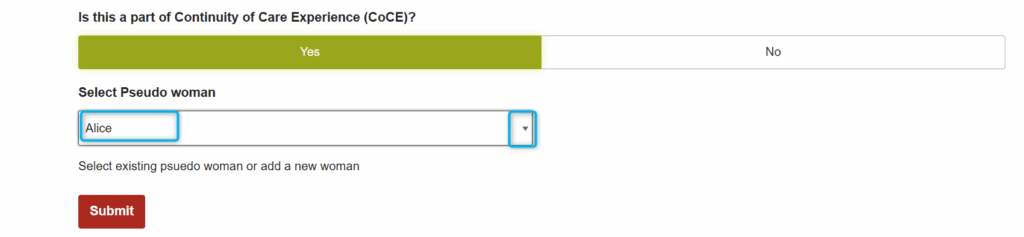
If you want to fill the form for an existing pseudo woman, you will see the psuedo woman already existing in the dropdown of the “Select Pseudo Woman” field as shown in the below image.
Reports page: Adding new reports
Once you have submitted the form, you will see the form status change on the “Reports” page as shown below.

Record of Practice forms need to be filled a minimum number of times based on the form type. To fill out another form for a particular Record of Practice, click on the plus sign indicated beside the form as shown in above screenshot. It will open a new form for you to fill in.
If you want to fill the Record of Practice form outside of a placement, go to “Record of Practice” page by clicking on it from the header menu.
On the “Record of Practice” page, you will see all the forms listed along with the count of the forms you have filled out of the minimum count required. Click on the “+” icon as shown in the image below. It will enable you to fill form outside of the placement.
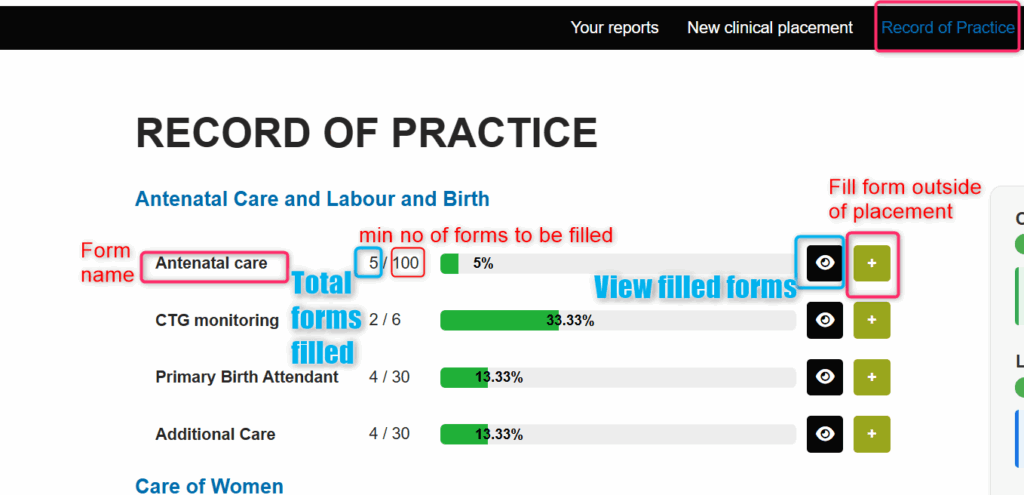
Beside each form title, you can see :
- Total number of forms filled
- Minimum number of forms required to be filled
- Percentage completed out of the minimum count as a progress bar
- “Eye” icon to view submitted forms.
- “+” icon to fill the form outside of a placement.
If you click on the “Eye” icon, you will see a table containing details of the forms you have already filled as shown in image below.
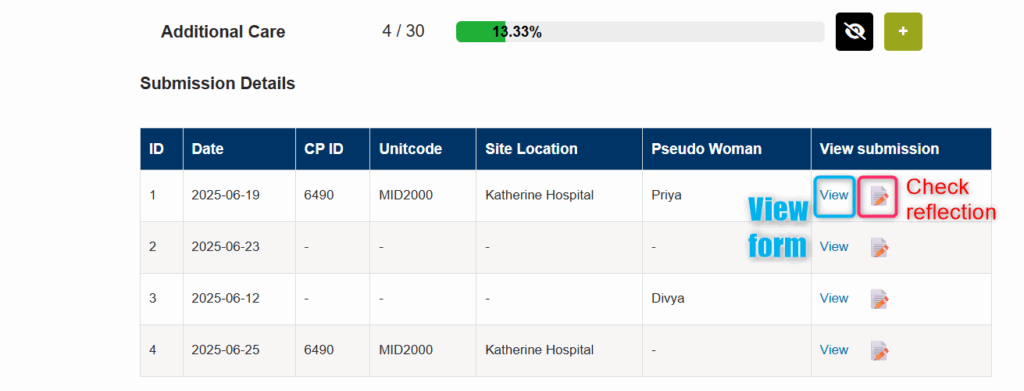
In order to view the submission for a particular form entry, click on “View” under “View Submission” column of the table.
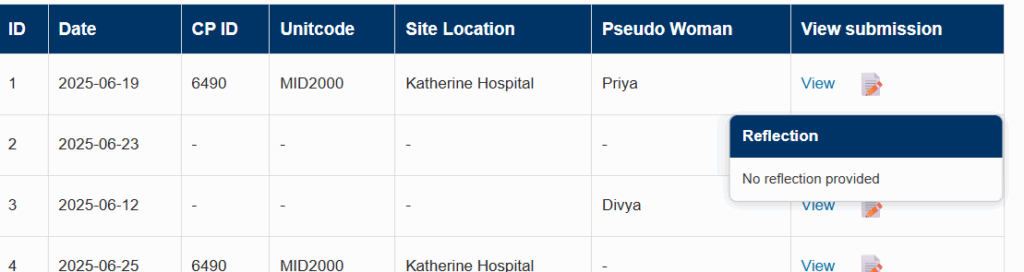
You can also view the reflection for the particular form entry by hovering over the page-pencil icon beside the “View” text.
Record of Practice for CoCE Women tracking
On the right of the page, you will see the number of COCE women you have completed out of the minimum required, number of “Labour and Births” done by you, number of antenatal visits and postnatal visits done by you.
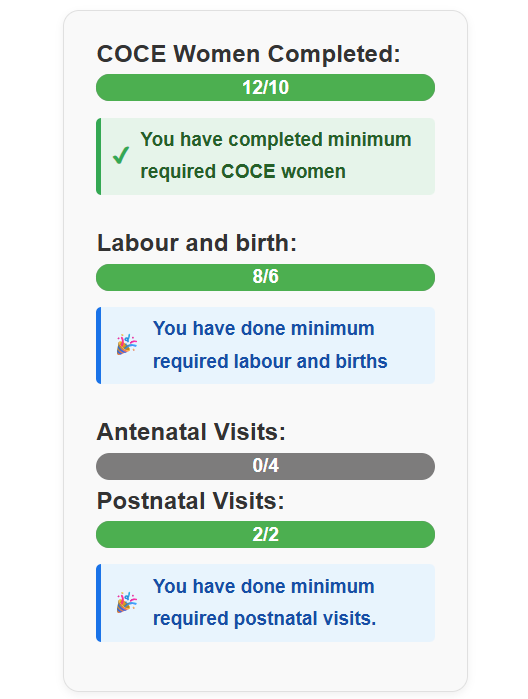
Once you have completed the minimum number, the bar will fill with green and show the message saying that you have completed the minimum required.
Note : This progress block is specific to COCE women only.
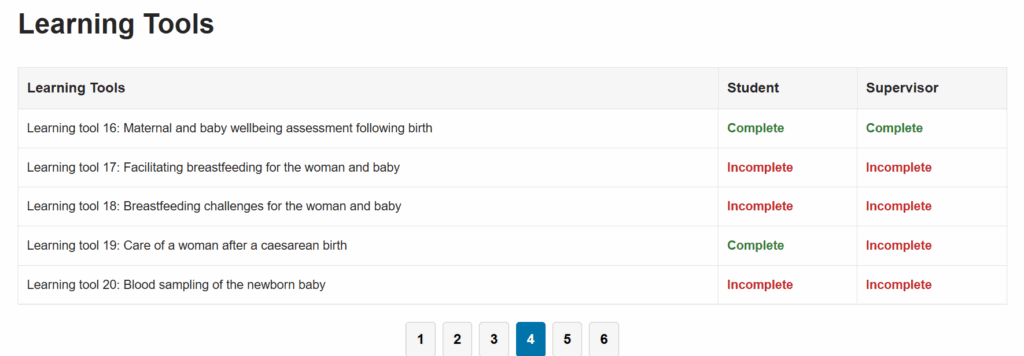
Tracking Learning Tools
If you scroll down on the “Record of Practice” page, you will see the list of all the learning tools listed in a paginated table. You will be able to see if you have completed the learning tool under “Student” column. You can also view your submission for a particular learning tool by clicking on “Complete”.