For help with the new Midwifery Records of Practice and Learning Tools
- Getting started (new placements)
- Working through the program
- Additional forms (NUR5923, NUR5924, NUR5925, NUR5926)
- Unit variation NUR5706
- Editing your account
Where to start?
1. Create a clinical placement
Once you have signed up successfully, the first step in creating a report is to create a new clinical placement on the ‘New clinical placement’ page. This form will allow you to set up placement details, such as unit code, and dates of placement period.
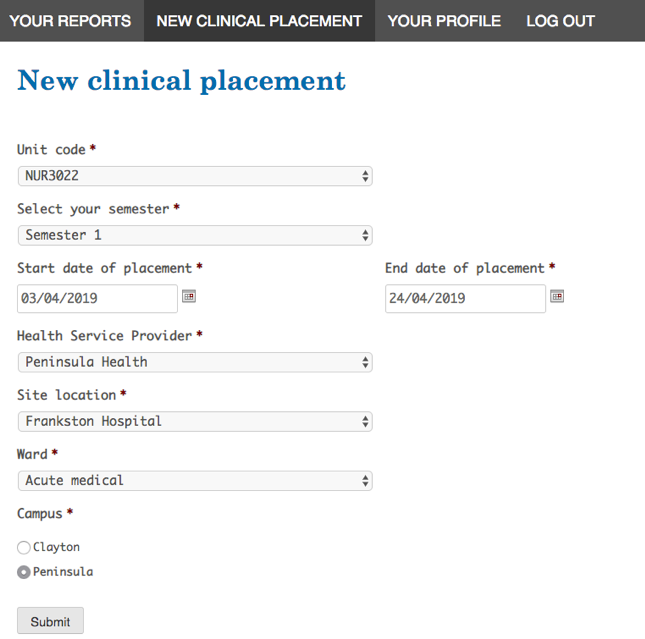
Please note: Your supervisor cannot create reports for you until you create a clinical placement that is associated with the supervisors health service provider (i.e. Peninsula Health)
2. Create a report
Once you have submitted (created) your clinical placement you will be taken back to the ‘Your reports’ page. You can access this via the menu as well. On this page you will see all the placements you have created. Each placement will show you the reports required for that unit.
This could be formative and summative, or just summative. There are two kinds of reports, those for students and those for supervisors. You will need to fill out the student reports.
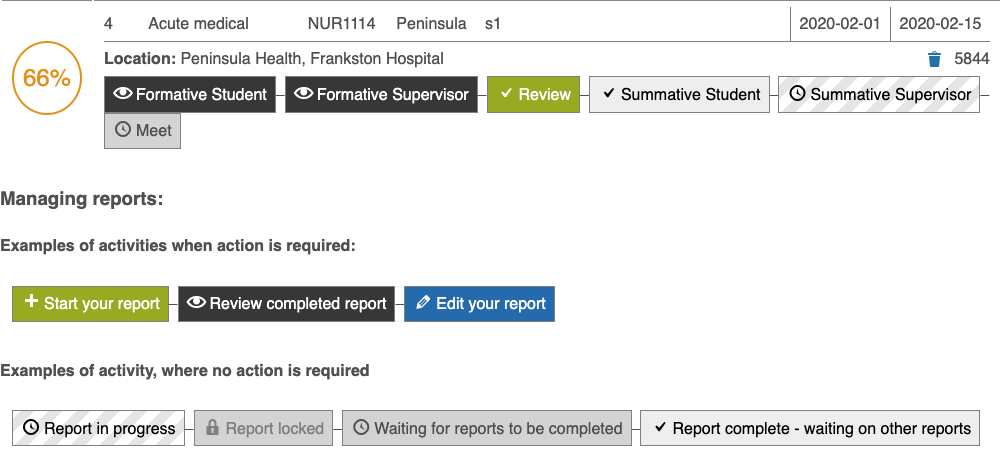
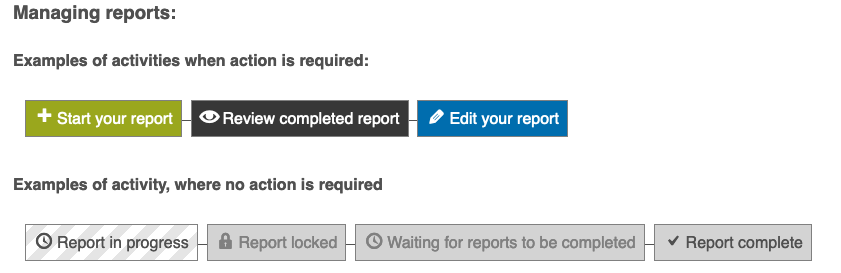
Each report will become available as the steps in the process are completed. The green buttons are for active reports, that have yet to be started. Blue buttons are for reports that have been started, but are incomplete, and black is for completed and submitted reports.
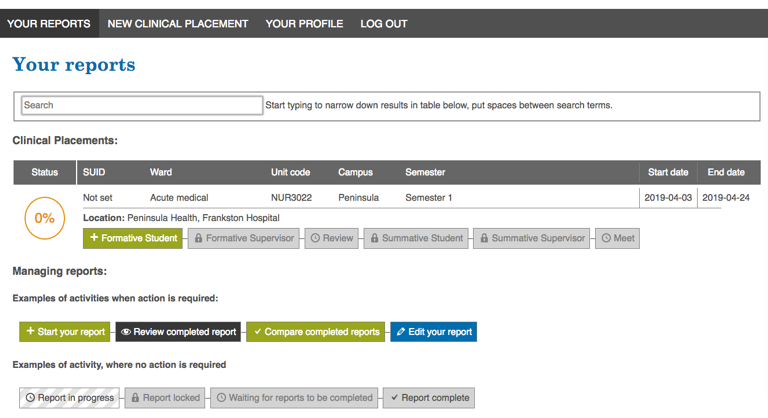
Click the green ‘+ Formative Student’ button to start a formative report.
You can review reports by clicking the black buttons, however they will not be available until both formative (or summative) reports are completed by you and your supervisor. When they are complete you will be able to review them side by side under the ‘Review’ and ‘Meet’ buttons. This is best done when you are with your supervisor.
Working through the program
Viewing the ‘Your Reports’ page
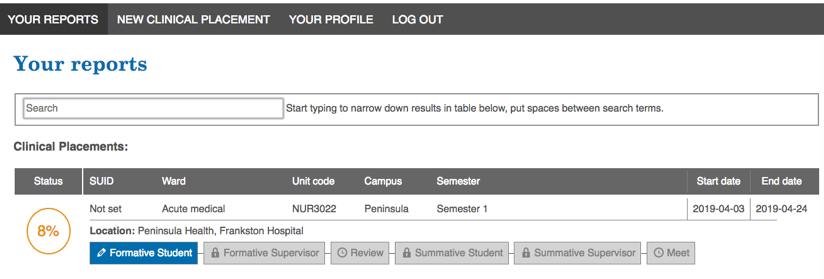
The ‘Your reports’ page is where you will see all your active, in progress, and completed reports. This contains a list of all your placements. You can see what steps you need to do by reviewing the buttons under the placement’s details.
Important: The page will display no entries until you have created a placement for yourself.
Typically, the page will look similar to this, although you may have more than one placement.
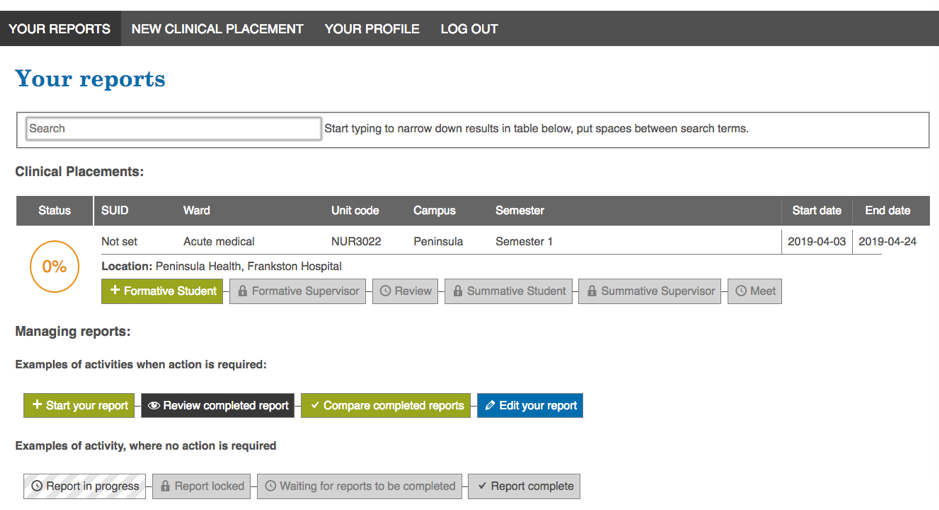
Important: If the list of placements is too long, you can search using the search bar at the top. Put spaces between each search term, and you can search almost any word, unitcode or date.
Report status, states or stages
A report can be in any number of stages of completion. The main ones are; not yet started (green); in progress (blue); completed and awaiting an external action (grey); or completed and ready for review (black). There is a key at the bottom of the page that describes each state.
Filling out the reports
Before you start
Before you start filling out the report, check the details at the top of the report to ensure you have the correct placement and report type. Once you are ready, begin filling out the report. You can advance as many standards as you like, but you must click ‘Save progress and exit’ to save your progress.
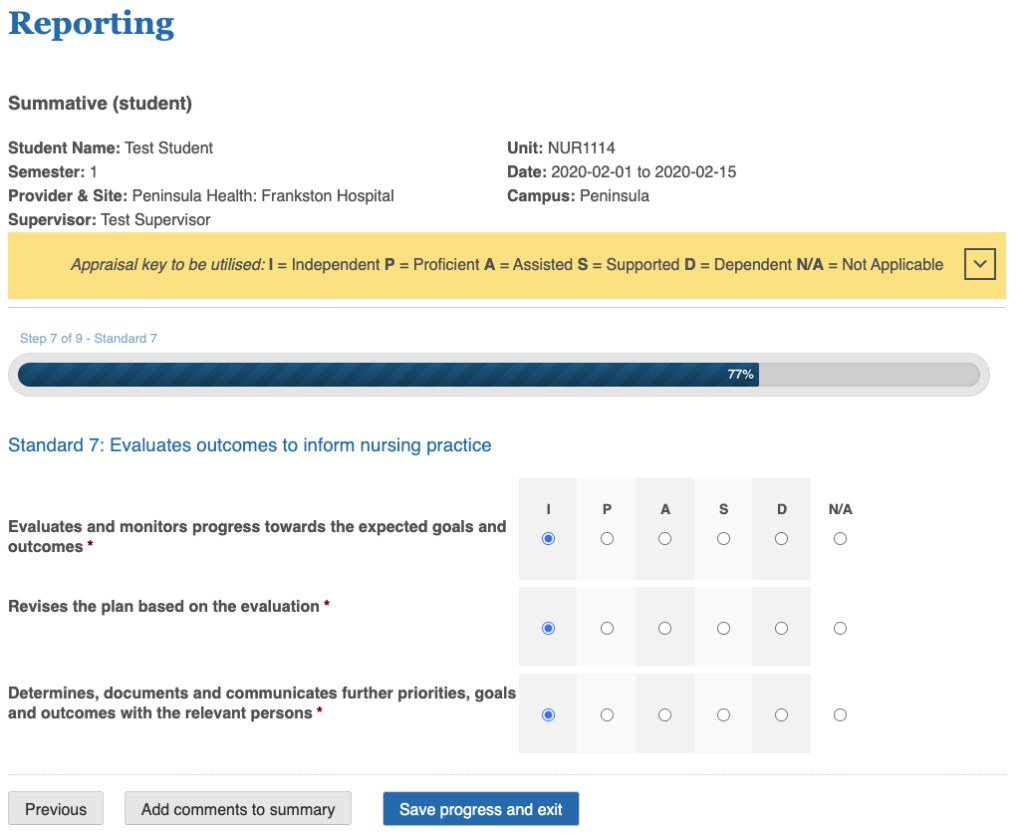
If you have chosen the wrong report, providing you have not clicked any buttons or selected anything (including changing pages), simply leave the page without saving and the report will not be recorded. Otherwise save the progress and make further edits later.
Saving progress and exiting incomplete form
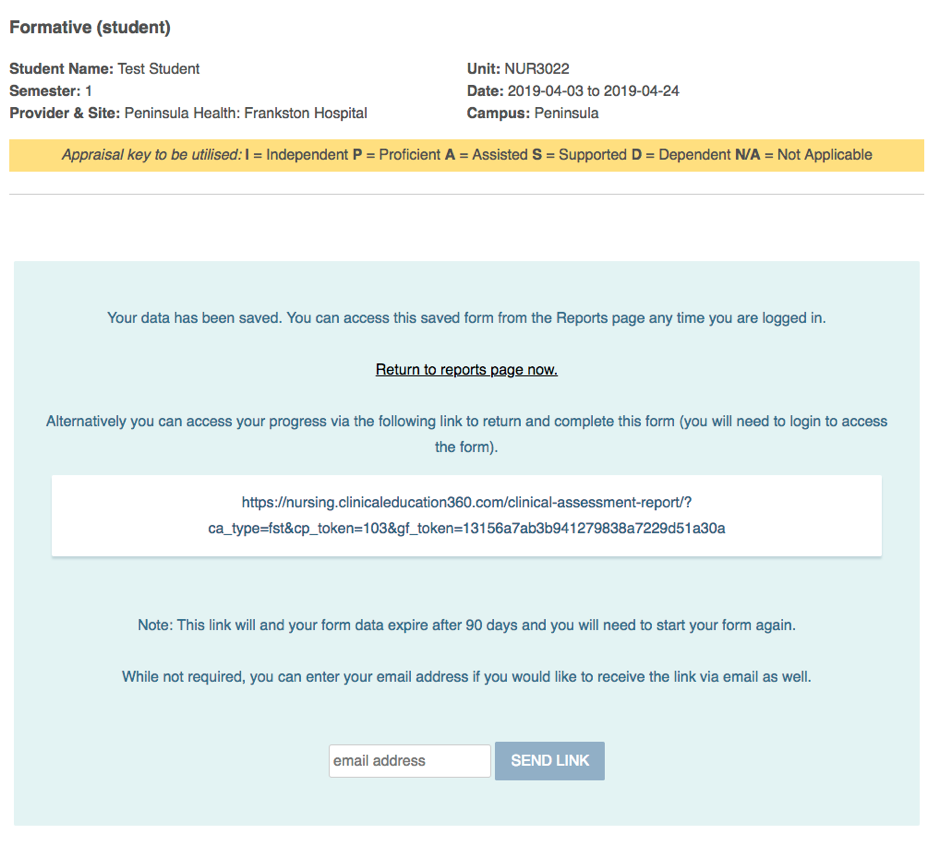
When saving a report, you will be given the opportunity to have the link sent to you by email. This is purely optional as your report will be saved in the ‘Your reports’ page, and you can simply return to the ‘Your reports’ page at a later date and continue from there.
Returning to a saved form
You can return to a saved form at any time. On the ‘Your reports page any blue report buttons are ‘saved’ reports that you can continue to edit at any time. Click the blue button to return to that report and continue to edit. You can save your progress as many times as you like.
Unlocking a report
Occasionally a report is submitted by accident. Providing you have not clicked the submit button, you should be able to unlock this. Accidental submission can occur if the form times out, internet drops out, or if you exit the form without saving. Visit the report via the black button on the reports page (you may need to wait until both reports are submitted for some units).
First click the review button

Click the unlock icon on the review page (this will only show for forms that can be unlocked) It will disappear once the unlock has been successful.

Return to the reports page, the black button will now be in the blue edit mode again.

Completing and Clinical Assessment Report
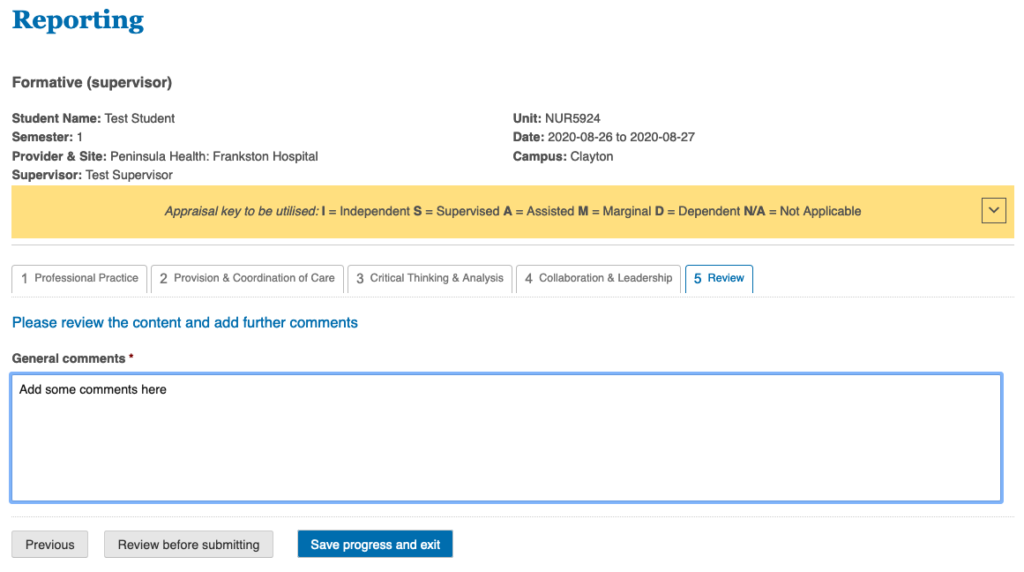
Work through each of the standards of the Clinical Assessment Report, until you reach the last comments section. Fill out the final details and add comments and continue to review the report, before submitting. You can use these comments as discussion points when you meet with your supervisor.
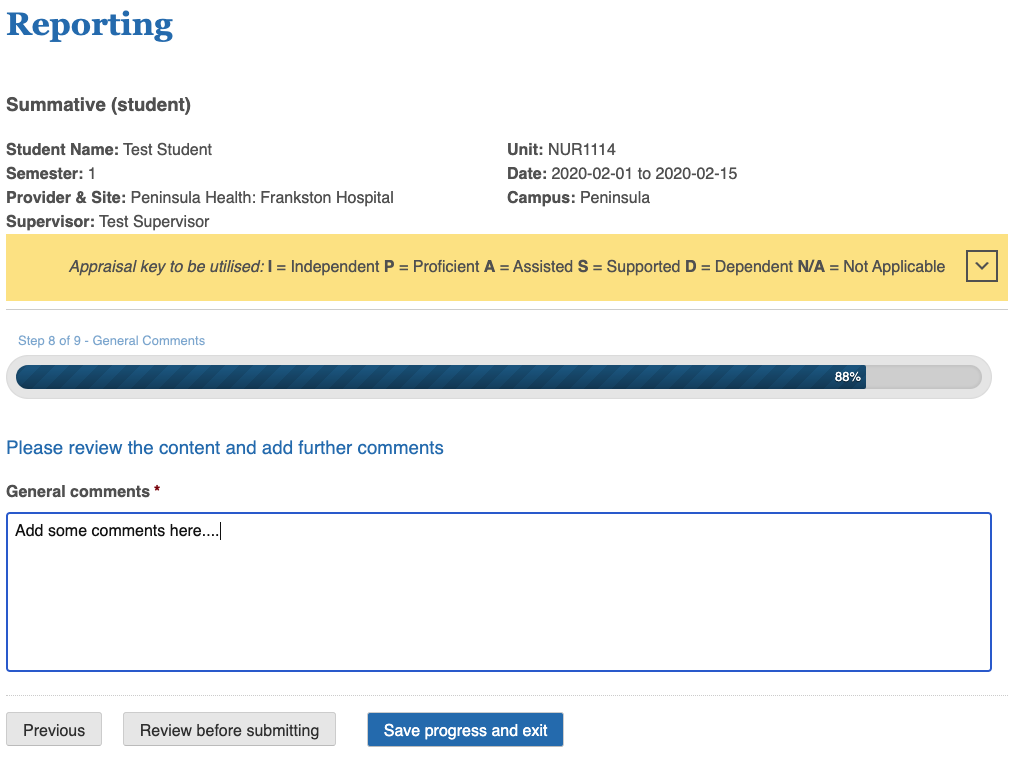
Once you have reviewed your report and are satisfied, finish editing and submit the report.
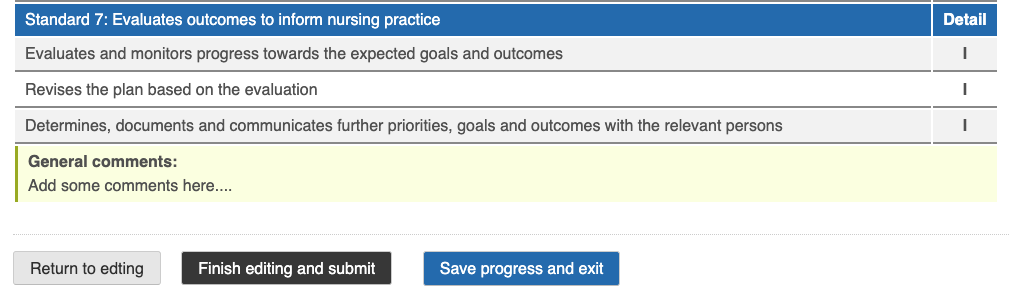
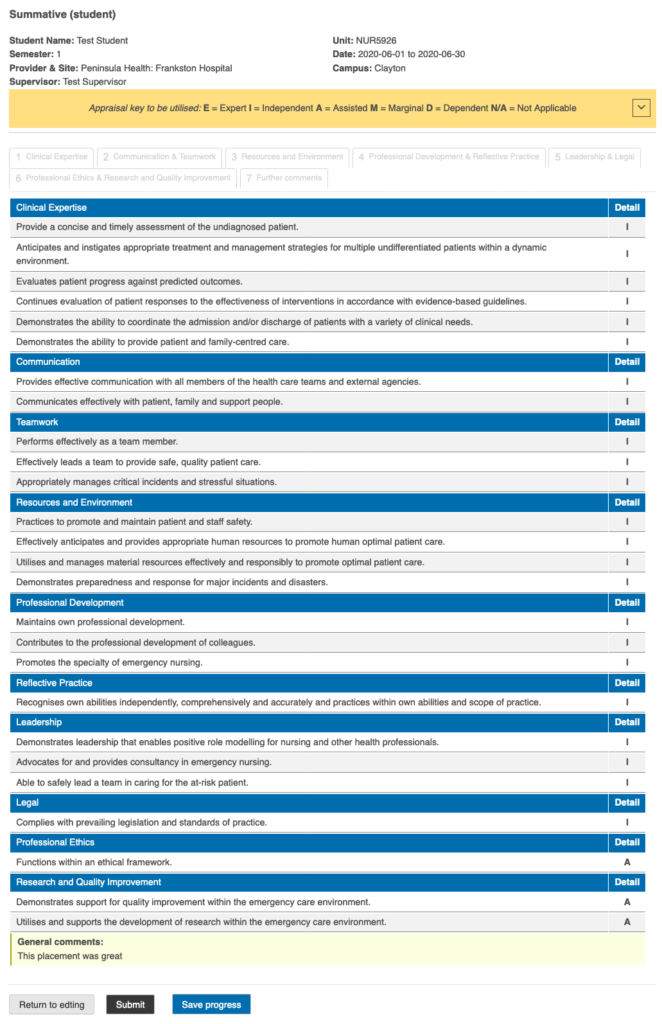
Important: Once the report is submitted it becomes locked and cannot be edited again. Be sure you are happy with what you have entered before clicking submit. Use the ‘Return to editing’ button to go to a previous section.
Completing all the reports for a placement
You will be required to fill out one formative and one summative report for each placement (In some units just a summative report).

Summative reports are not available until both the formative reports have been filled out.
When you have completed the reports, you will be able to Meet with the supervisor to review both summative entries.
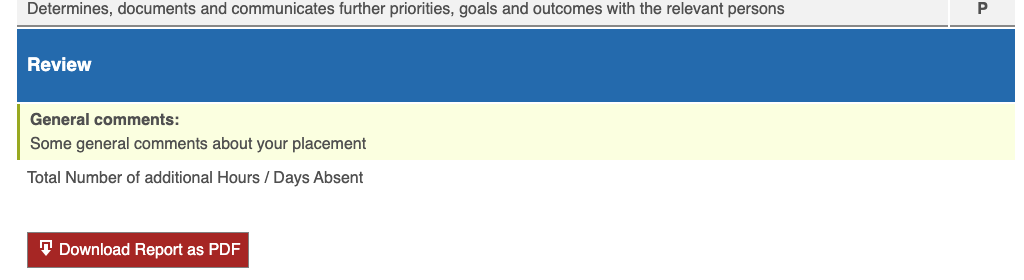
For some units you are required to download a pdf and submit the form. For those reports, simply scroll to the bottom of the reviewed form and click the download pdf button.
NUR5923, NUR5924, NUR5925, NUR5926 Forms
Student Forms
There are a number of extra forms available for certain units. Note that tabs for students will be green to start with, and blue while editing. All forms become black or grey when completed.
NUR5923 & NUR5924 have 2 Clinical Performance Appraisal reports to fill out.
NUR5925 & NUR5926 have 2 Clinical Performance Appraisal reports to fill out, plus self-directed questions.
Most report pages start like this:

Once you have begun creating reports your page might end up looking more like this.
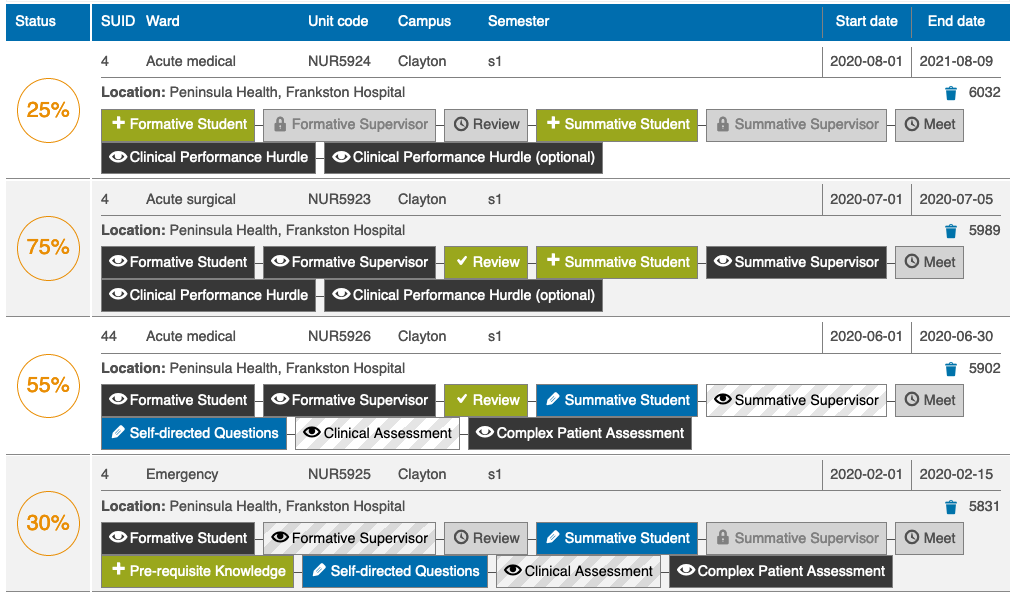
Each stage/step that a form is at is defined by the key.
Supervisor only forms
Supervisors will have a number of reports to fill out for you. they will be able to start, save and completed them. Once they have started the report and saved at least once you will be able to review their progress. Look for the eye to know if you can review the report.

Navigating forms
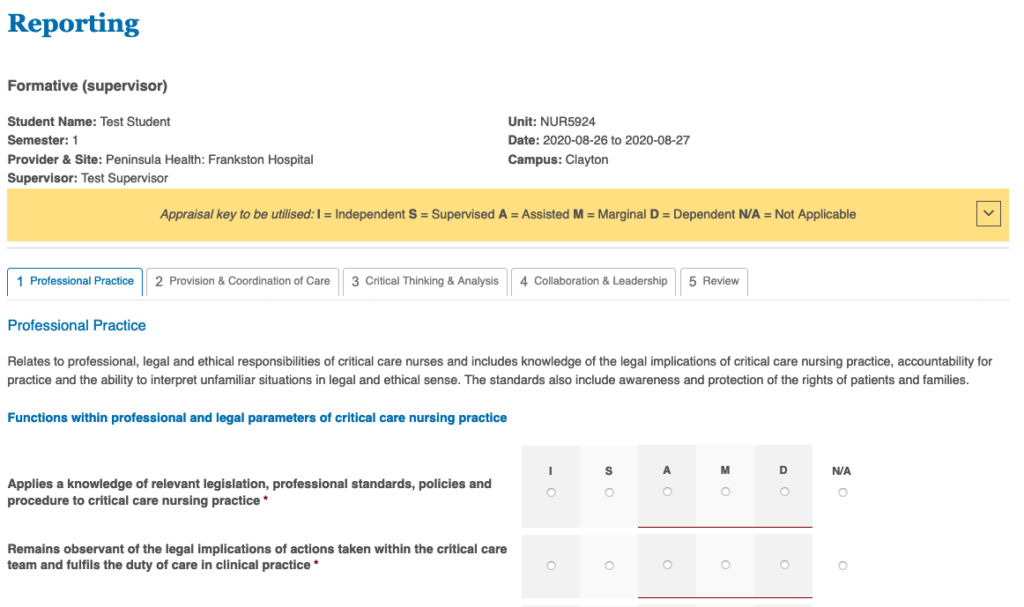
The process for completing forms for NUR592# units are mostly the same as the rest of the units, however the forms are navigated through tabs so you will not need progress through the pages one at a time. You can still save your progress as you work through each domain.
Always check the details of your placement details are correct.
Once you have completed the form, you must add some comments and then review before submitting.
Finalising reports
Once you are happy, you can finish editing and submit the form. Note that this completes the form and no further changes can be made. If a change must be made contact your course co-ordinator.
NUR5706 Forms
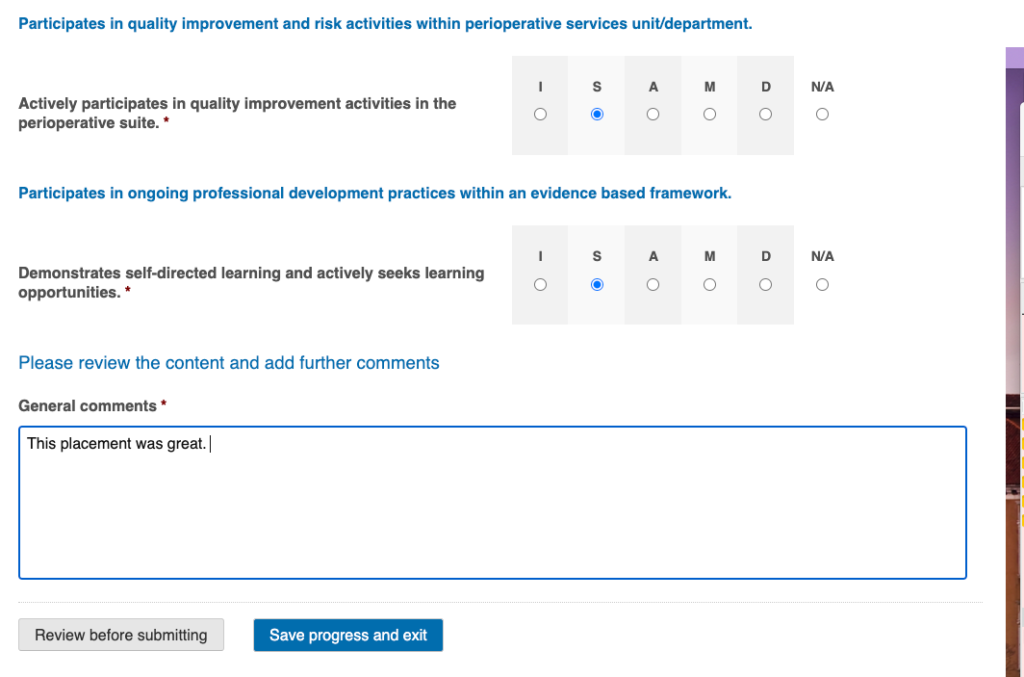
The process for completing forms for NUR5706 is mostly the same as the rest of the units, however the forms are shorter so you will not need progress through multiple pages. You can still save your progress as you work through each domain.
Check the details of your placement are correct.
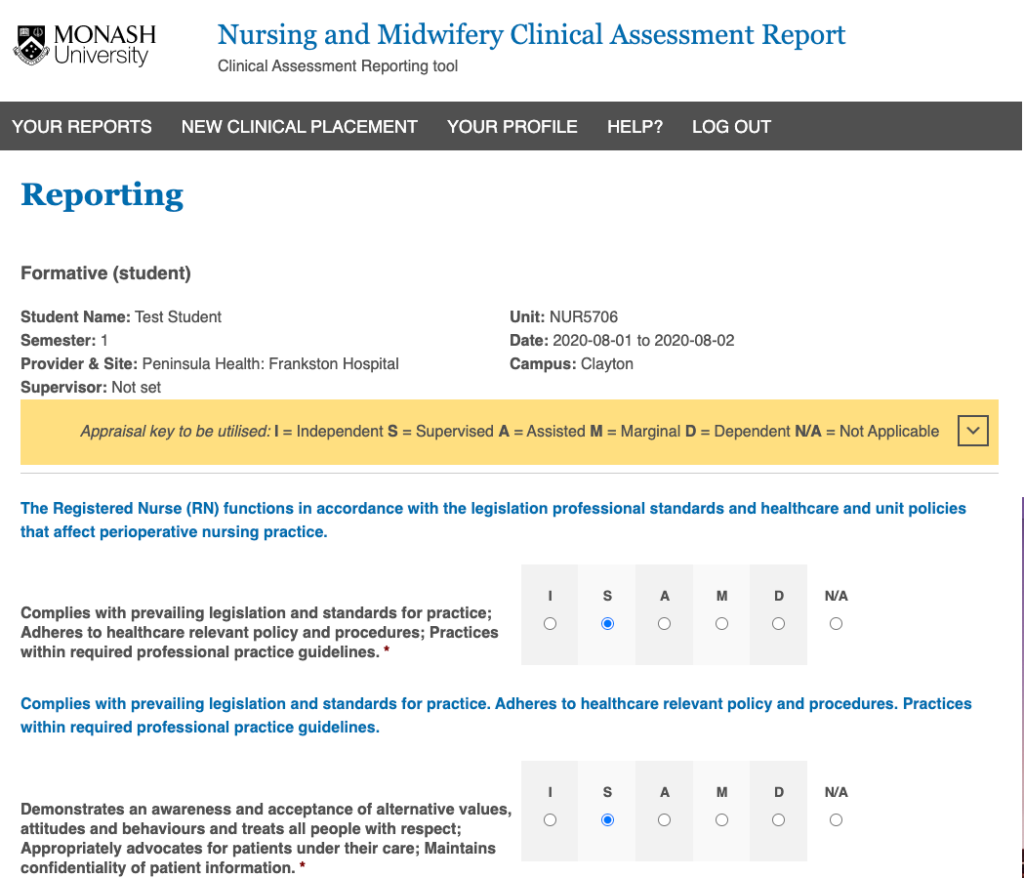
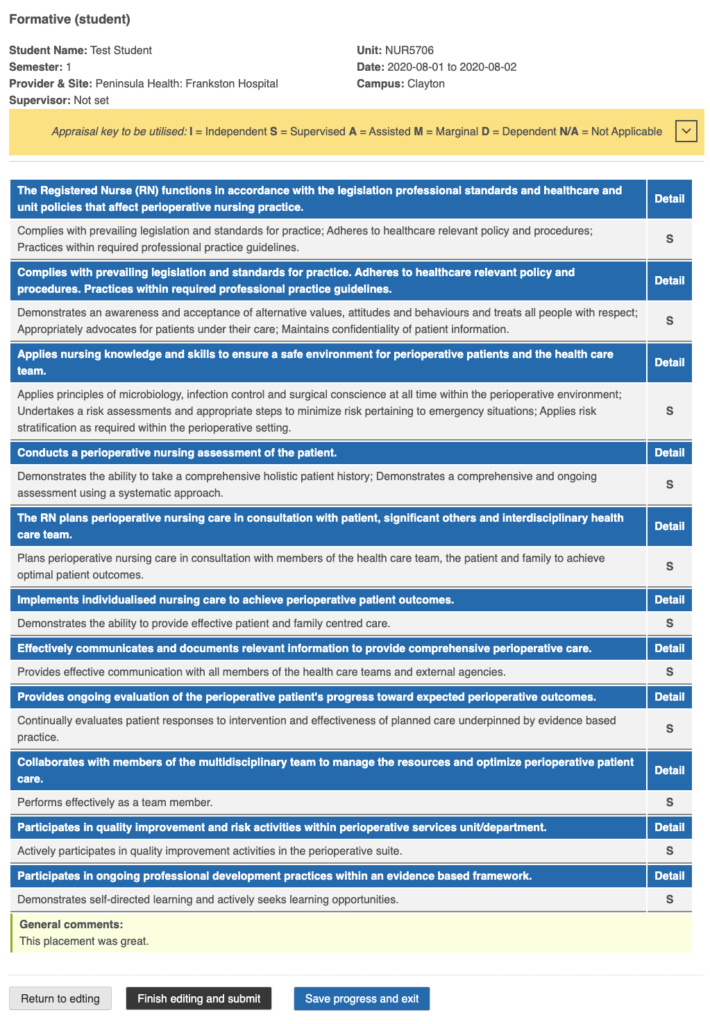
Once you have completed the form, you must review before submitting.
Once you are happy, you can finish editing and submit the form. Note that this completes the form and no further changes can be made. If a change must be made contact your course co-ordinator.
Editing your account details
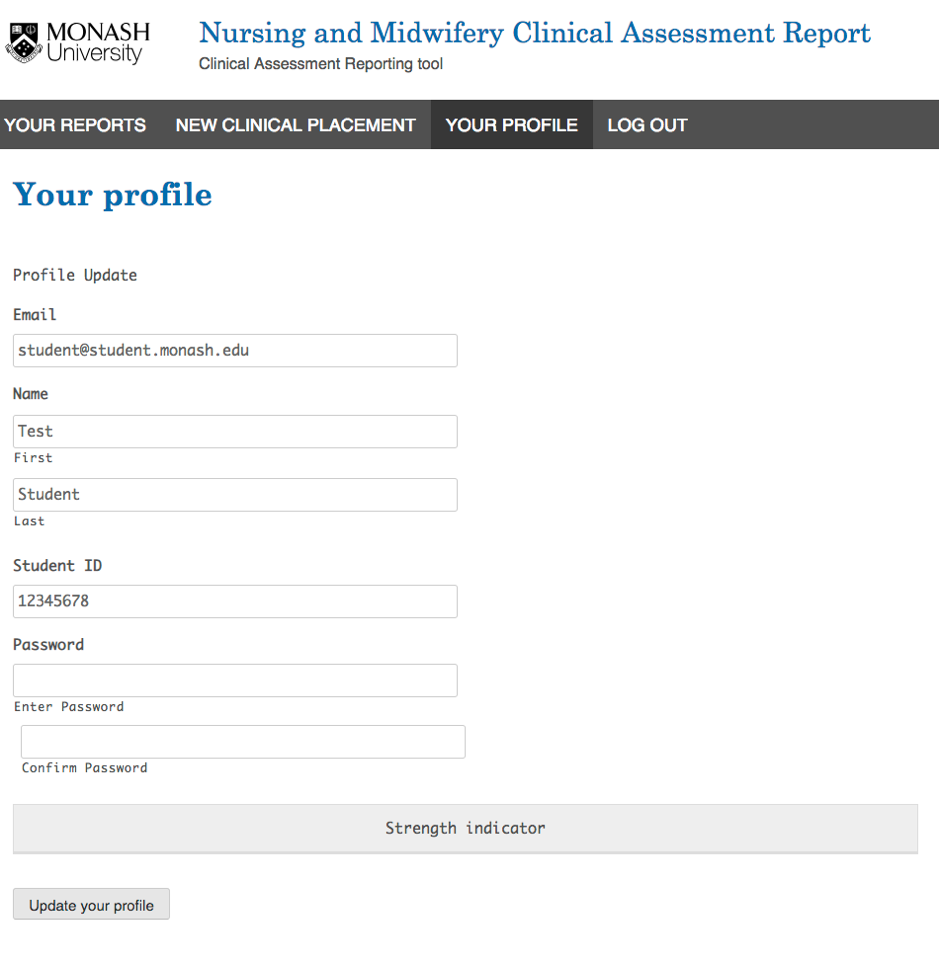
You can edit the details of your account under ‘Your Profile’. You can change all the fields and reset your password.